Ashampoo® Snap FREE
Capture, Edit, and Share Screenshots – For Free!
for you!
| 5 stars |
|
453 |
(66.2%)
|
| 4 stars |
|
145 |
(21.2%)
|
| 3 stars |
|
51 |
(7.5%)
|
| 2 stars |
|
16 |
(2.3%)
|
| 1 star |
|
19 |
(2.8%)
|
Only customers who have purchased or registered a specific product can rate that product.
This way you can be certain that all opinions are genuine and verified.
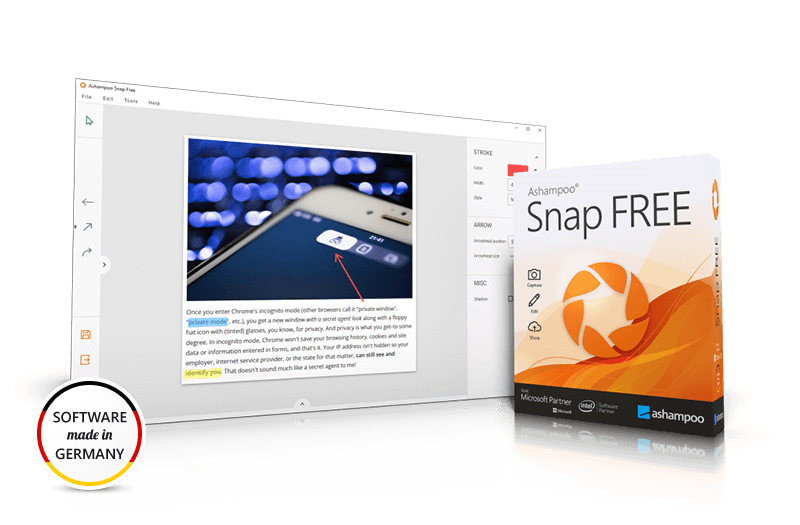
Free screenshot software for Windows with powerful image editing tools
With Ashampoo Snap Free, you can capture anything on your screen – quickly, easily, and completely free of charge! Whether it's important information, error messages, websites, or content from applications, take screenshots in seconds and edit them directly in the built-in editor. Add text, arrows, or highlights, blur sensitive information, or draw attention to important details. With this major update, Ashampoo Snap Free offers even more ways to capture and edit screenshots. Turn a simple screenshot into a clear explanation, a helpful guide, or an image that shows exactly what matters.
Capture everything that matters
From individual windows to entire web pages
With Ashampoo Snap Free, you decide exactly what appears in your screenshots. Capture individual windows, custom screen regions, or entire monitors. Even long web pages and other scrollable content can be captured without having to create multiple images. The new update also lets you capture all connected monitors simultaneously and optionally include the mouse cursor. Another useful improvement: Enhanced quick capture makes it even easier to capture important screen content.
Edit screenshots instead of just saving them
Highlight, annotate, and explain clearly
A good screenshot does more than just show something – it helps make information easier to understand. That's why Ashampoo Snap Free includes a versatile image editor that lets you edit your captures directly. Crop, resize, or rotate images as needed. Add text, arrows, lines, and shapes, or use the highlighter to emphasize important information. Text and numbered steps make it easy to create clear step-by-step instructions. And if certain information shouldn't be visible, simply blur it out.
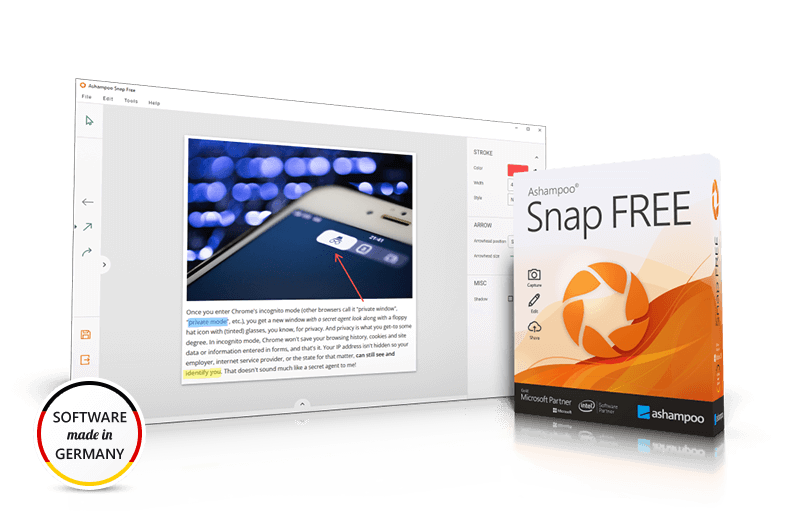
- Capture, edit, and save screenshots for free
- Capture individual windows, custom regions, and entire screens
- Create vertical and horizontal scrolling screenshots
- Capture all connected monitors simultaneously
- Optionally include the mouse cursor in screenshots
- Take screenshots quickly and easily
- Crop, resize, and rotate screenshots
- Add text, arrows, lines, and shapes
- Highlight important areas with the highlighter tool
- Blur sensitive information to keep it private
- Add numbered steps to create instructions
- Add frames to images and enlarge the canvas
- Pick colors directly from the screen with the color picker
- Merge layers and undo changes
- Access frequently used features through convenient shortcuts
- Save screenshots as JPEG or PNG files
- Copy images to the clipboard or print them directly
- Switch between interface color schemes
More ways to enhance your images
Practical tools for personalized results
The latest update expands the image editor with numerous useful features. Enlarge the canvas, add suitable frames, or merge multiple layers into a single image. Use the color picker to sample colors directly from your screen and apply them to your highlights and drawings. Convenient shortcuts provide quick access to frequently used tools, while changes can easily be undone whenever necessary. This gives you the flexibility to customize your screenshots without having to open a separate image editor.
Finish faster and put your screenshots to use
Save, copy, or print directly
Once your screenshot is ready, you have several options for using it. Save your images as JPEG or PNG files, copy them to the clipboard, or print them directly. Quick export makes saving your screenshots especially easy. You can then conveniently insert them into documents, emails, or presentations. You can also customize the interface to suit your preferences: Switch between color schemes and use the features you need for your daily tasks. All without spending a dime or dealing with unnecessary complications.

What is Ashampoo Snap FREE?
What types of captures are available in the FREE version?
Can I edit my screenshots?
How is Snap FREE different from the full version?
Is Snap FREE suitable for beginners?
How can I save or share my images?
Are there any limitations or time restrictions?
Are keyboard shortcuts supported?
Can I crop screenshots right after capturing them?
Does the program support multiple monitors?
What customers think about Snap FREE
Only customers who have purchased or registered a specific product can rate that product.
This way you can be certain that all opinions are genuine and verified.
-
Viktoriala WirtuosalaSnapFREE SnapFREE
Everything's great
Alles bestens
This review has been automatically translated.Helpful? -
Jan Henricool tool leuke tool
a tool that works well
goed werkende tool
This review has been automatically translated.Helpful? -
Helmut JakobHighly recommended Sehr zu Empfehen
Used very often. Always a pleasure to use.
Sehr oft benutzt. Immer wieder gerne.
This review has been automatically translated.Helpful? -
Joe Milkeseasy to use; good product; much improved
I have an older version of Snap. For whatever reason, when using it and MS screen grab to capture an online image like a map, it becomes very faded. Why? No idea. But this newer product does not have the problem and is much easier to use. Recommendation: try it out.
Helpful? -
Viktor LudwigVery good, thank you very much. Sehr gut, Vielen Dank.
Very good.
Sehr gut.
This review has been automatically translated.Helpful?
More top products from Ashampoo: No PC should be without them!

The ultimate fix for malware infections, hard disk defects and Windows crashes